Main focus
Share one inventory with teammates so Android, iOS, and Web users work from the same synced data set with the right permissions.
Watch the Android steps
Quick path
Share from Android
- Open the Inventories screen.
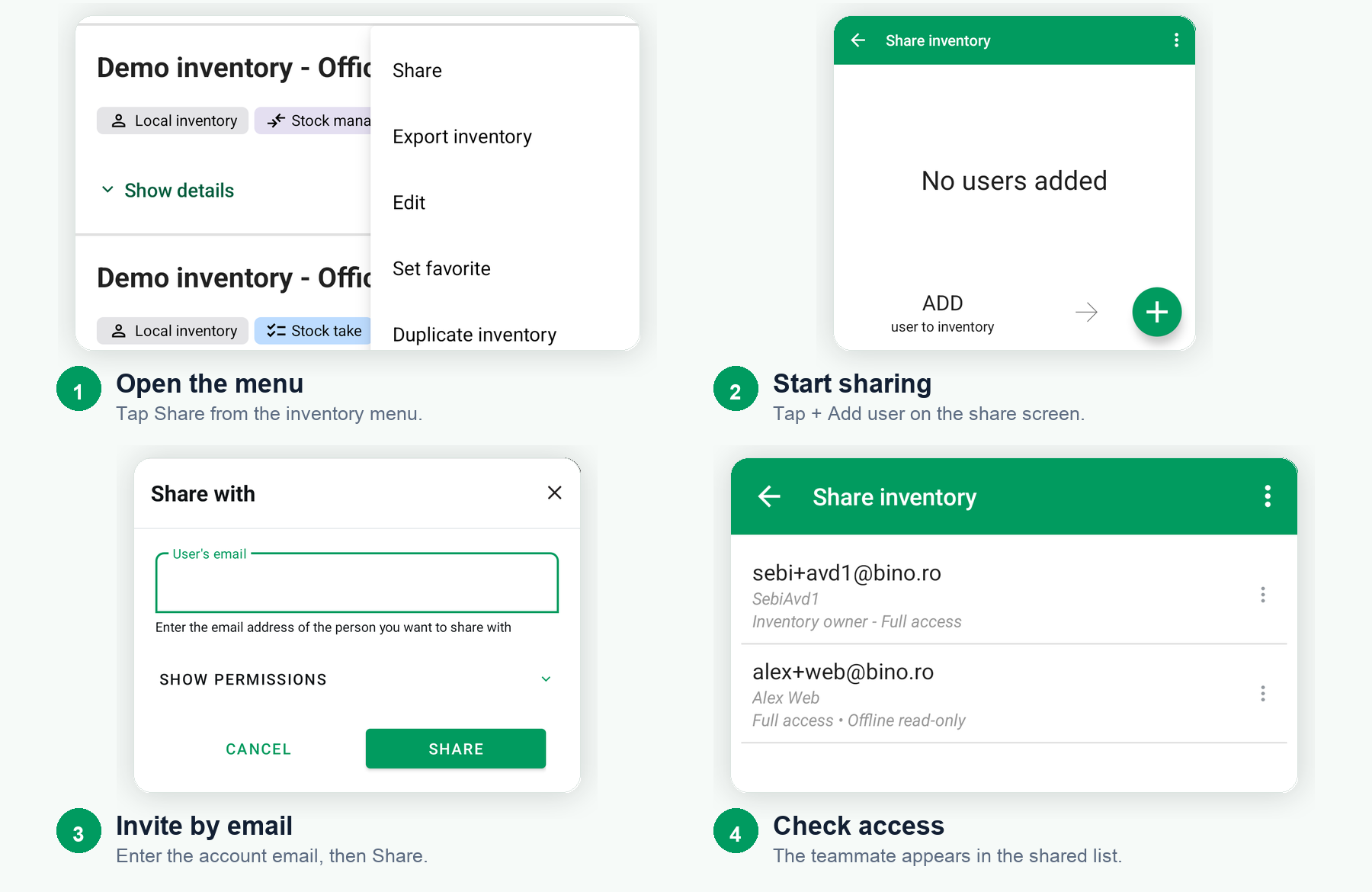
- Open the inventory menu and tap Share. If the inventory is already shared, use Sharing options.
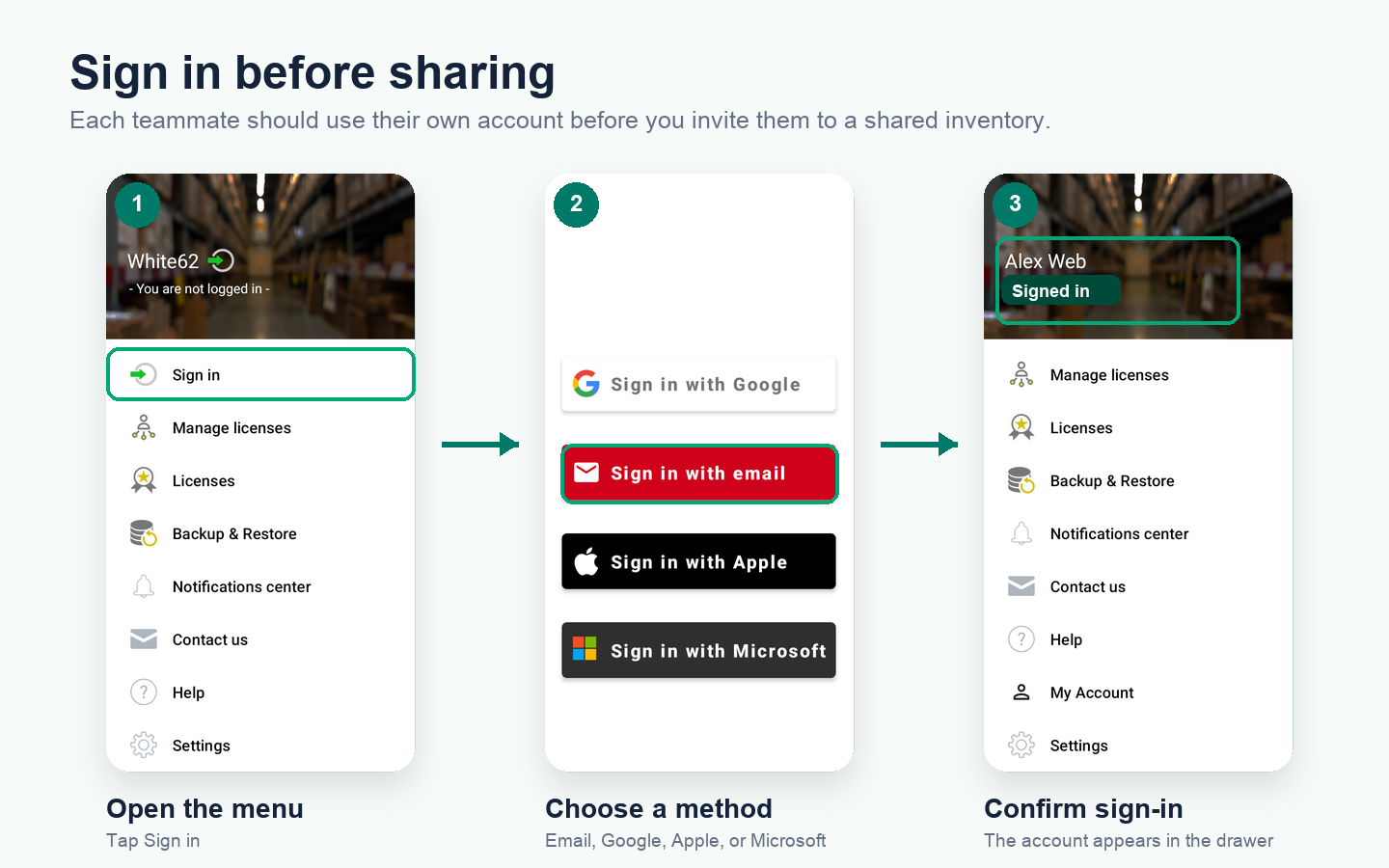
- Authenticate if the app asks you to sign in.
- Enter the teammate's account email.
- Open Show Permissions and review access before you invite them.
- Set Allow changes while offline for trusted Android users who need offline writes.
- Tap Share, then confirm the user appears in Sharing options.
Before you start
- Each person must use their own Mobile Inventory account. Do not share one account across multiple team members.
- Each invited user needs an active PRO license. For teams, see Manage licenses as an admin or the Team Trial FAQ.
- The invited email must belong to an existing Mobile Inventory account. If the user does not exist yet, ask them to create an account first, then invite the same email address.
- Sharing, editing permissions, and removing users require an internet connection.
- One active device per user account is supported. See the same-account FAQ before moving accounts between devices.
How shared sync works
- Shared inventory
- One cloud-backed inventory that multiple accounts can open from Android, iOS, or Web.
- Owner
- The user who owns the inventory keeps full access and can manage sharing.
- Permissions
- Access is set per user. You can give full access, view-only access, or a limited set of add, edit, delete, export, share, and reporting permissions.
- Offline access
- Android can allow offline changes for a shared user, or keep that user's offline access read-only until the device reconnects.
Share from Android
- Open the Inventories screen.
- Find the inventory you want your team to share.
- Open the inventory menu and tap Share. If the inventory already has shared users, open Sharing options instead.
- If Not authenticated appears, tap Authenticate, sign in, and return to the same inventory menu.
- Tap Add user, then enter the teammate's account email.
- Tap Show Permissions before inviting the user.
- Leave Read Access enabled, then choose what this user can add, edit, delete, export, share, or open in Smart Reports.
- For Android offline work, decide whether Allow changes while offline should stay on. Turn it off when offline access should be read-only.
- Tap Share.
- Open Sharing options again and check that the user appears with the expected access summary.
Share from the Web app
- Open the Web app and go to the inventory list.
- Open the inventory menu.
- Choose Share for an inventory that has not been shared yet, or Sharing options to manage an already shared inventory.
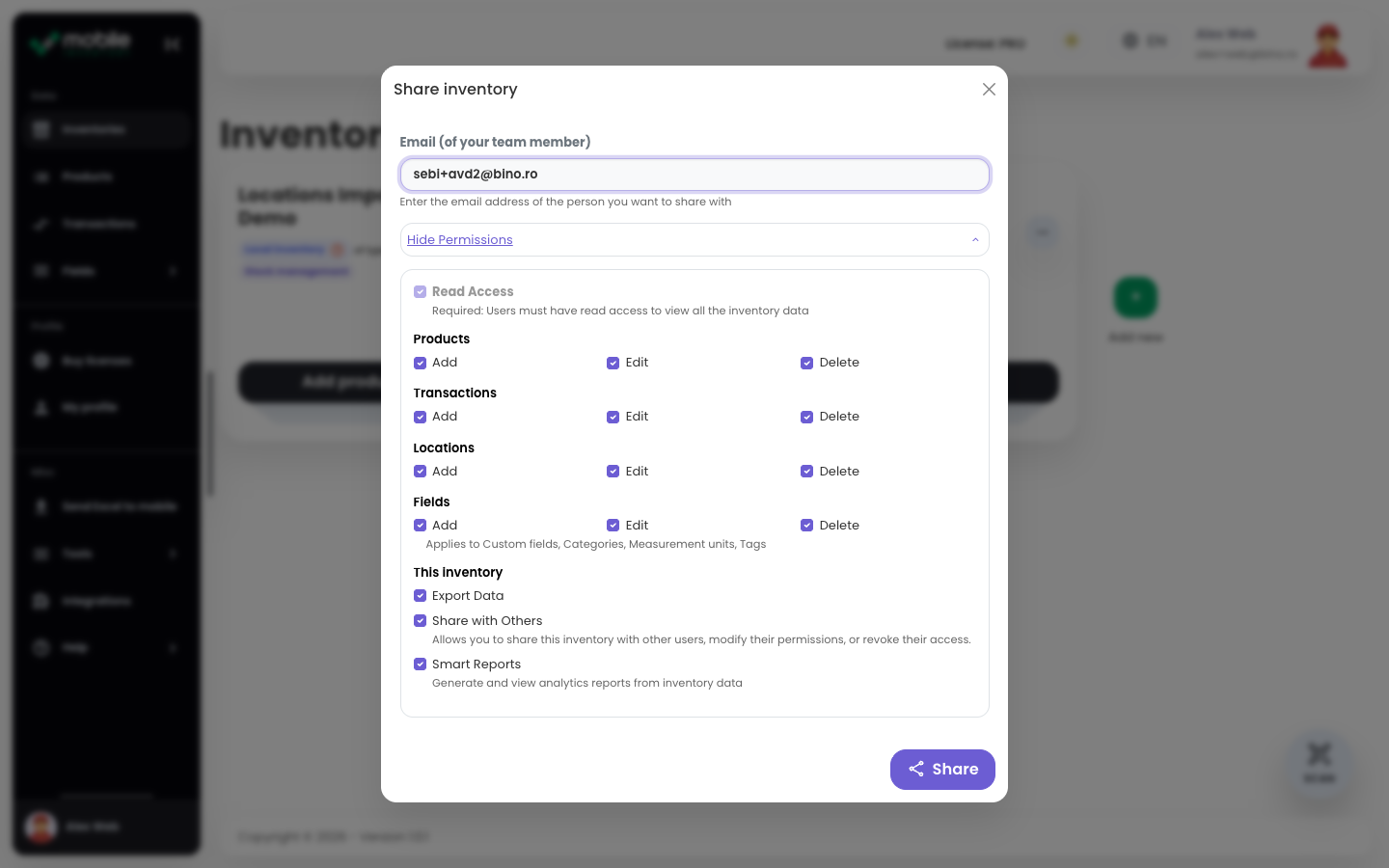
- Enter the teammate's account email.
- Open Show Permissions if you want to limit what the user can do.
- Review products, transactions, locations, fields, export, share, and report access.
- Select Share.
- Use Manage shared access to add users, edit permissions, or remove access later.
Permissions
Permissions decide what each invited user can do inside the shared inventory. New shares can start with broad access, so open Show Permissions whenever you need a narrower role.
| Permission | What it controls |
|---|---|
| Read Access | Required view access. Lets the user open and read the shared inventory. It cannot be disabled because every shared user needs read access. |
| Products | Add, Edit, and Delete controls for products. Use this to decide who can create products, update product details, or remove products. |
| Transactions | Add, Edit, and Delete controls for stock movements, entries, and transaction history changes. |
| Locations | Add, Edit, and Delete controls for storage locations and location cleanup. |
| Fields | Add, Edit, and Delete controls for categories, measurement units, tags, and custom fields. |
| Export Data | Lets the user export inventory data. Turn this off for users who should work in the app but not download data. |
| Share with Others | Lets the user invite people, change permissions, or remove users. Keep this limited to owners or trusted managers. |
| Smart Reports | Lets the user open Smart Reports when that access is part of their role. |
| Offline access | Android setting for Allow changes while offline. When off, offline access is read-only until reconnect. |
Access summaries
- Full access
- The user has the main permissions that can be granted for the inventory.
- Limited access
- At least one permission is restricted. Open the user to review the exact settings.
- View only
- The user can read inventory data but cannot add, edit, or delete inventory records.
- Offline read-only
- The user can view cached Android data offline, but write actions are blocked until the device reconnects.
Need the full permission reference?
See Inventory permissions for the broader feature reference and role examples.
Offline sync
- Online devices: Changes sync to the shared inventory so other Android, iOS, and Web users can see the updated data.
- Allow changes while offline: Android users can keep adding or editing while offline when this permission is enabled for them.
- Offline read-only: When offline changes are not allowed, the user can view cached inventory data but cannot create, edit, or delete records until reconnect.
- Changes not synced: Android may show this status when local changes are waiting for internet access. Reconnect and let sync finish before relying on another device to show those changes.
- Permission changes: Change sharing and permissions while online. A device that is already offline may not reflect the latest permission change until it reconnects.
Limits and important behavior
- Shared inventory limits apply: Shared data has usage limits. The default product sharing limit is 5,000 products per shared inventory unless your account configuration allows more. See the High Usage Policy for the full shared-data limits.
- Local inventory limits are different: A local inventory is not the same as a shared inventory. Limits that protect shared sync apply to shared data.
- Each user needs their own license: Shared access requires an active PRO license for each user account.
- Do not reuse one account on multiple devices: Same-account simultaneous login is not supported and can create sync and access confusion.
- Removed users lose access: If a user is removed from shared access, they can no longer open that shared inventory. Invite them again if access should be restored.
- iOS is supported: This article uses Android and Web media because those were the available capture platforms for this update. The shared inventory data set remains compatible with iOS users.
Troubleshooting
| Problem | What to check |
|---|---|
| Not authenticated | Sign in when prompted, then return to the inventory menu and start sharing again. |
| User does not exist | Ask the teammate to create a Mobile Inventory account first, then invite the exact email they used. |
| Missing PRO license | Assign or purchase a PRO license for that user's account. The team trial can be used for evaluation. |
| No permission to share inventory | Ask the owner or another manager to enable Share with Others for your user, or have the owner invite the teammate. |
| No internet connection | Reconnect before sharing, changing permissions, or removing a user. These actions need the server. |
| Teammate cannot edit offline | Check whether Allow changes while offline is enabled for that user on Android. If it is off, offline access is read-only. |
| Changes look stale on another device | Open the offline banner or sync status, reconnect the device with unsynced changes, and wait until Changes not synced clears. |
Completion checklist
- The invited user can open the shared inventory from their own account.
- The access summary matches the user's role: full access, limited access, view only, or offline read-only.
- A small test change made on one platform appears on another platform after sync.
- If Android offline work is allowed, a test offline change syncs after reconnect.
- If Android offline work is not allowed, the user sees read-only behavior while offline.
- No device still shows Changes not synced after reconnecting.
Next step
After sharing, make one low-risk test change and confirm it appears on another platform. Adjust permissions before the team starts live work.